Localization
Localization turns the hardcoded strings in your pages into a translation table you can fill in per language, and serves the right language to each visitor automatically. It localizes text; prices localize on their own through the catalog’s Intl formatting. You manage it from the Localization view in the editor (the globe icon in the tools rail).
Enabling translations
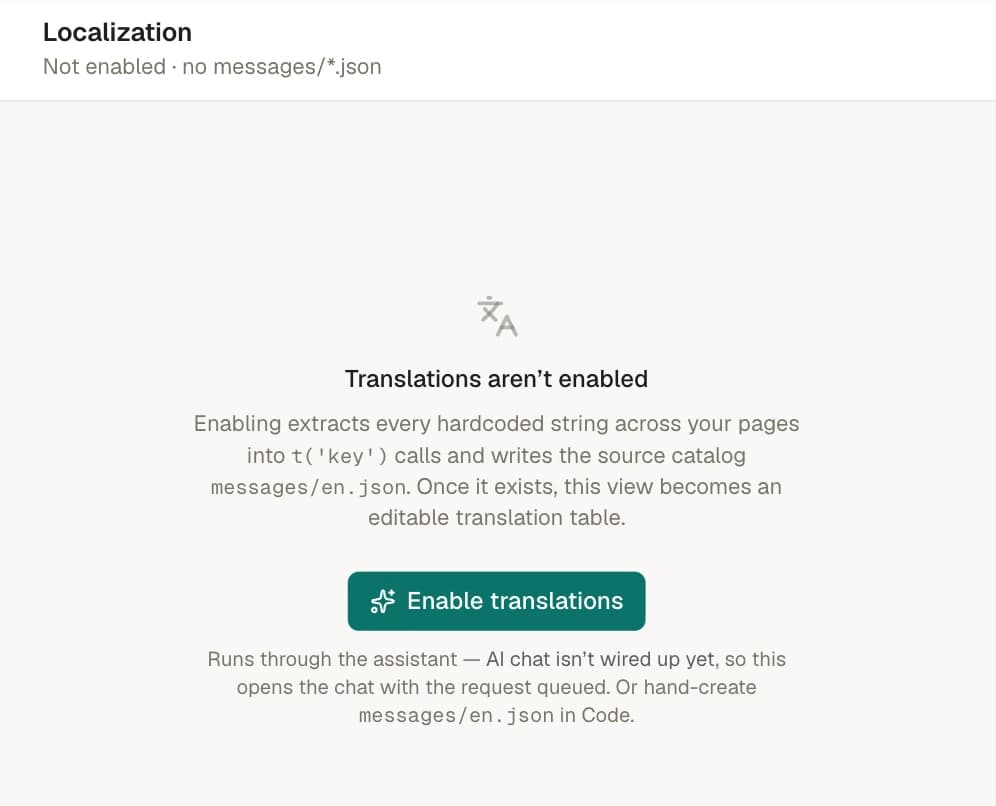
Until you enable it, a funnel has no messages/ folder and the Localization view shows an empty state:
Translations aren’t enabled — Enabling extracts every hardcoded string across your pages into
t('key')calls and writes the source catalogmessages/<source>.json. Once it exists, this view becomes an editable translation table.
Click Enable translations. That runs a precise extractor over pages/*.tsx and layout.tsx — no AI, no guessing. It’s JSX-aware and conservative on purpose:
- Extracts pure text nodes (the visible copy between tags) and a whitelist of attributes:
placeholder,title,alt,aria-label,label. - Skips everything else — expressions, className values, other attributes, anything computed. If a string isn’t plain author-written copy, the extractor leaves it alone rather than risk breaking your code.
Each extracted string is replaced with a t('key') call and written into the source catalog messages/<source>.json. From then on, the view is an editable table.
If your pages have no extractable strings, enabling doesn’t produce a table — it queues a prompt into the assistant chat and switches you there, so the AI can help wire up t() calls. This is the one case where enabling hands off to the assistant.
The translation table
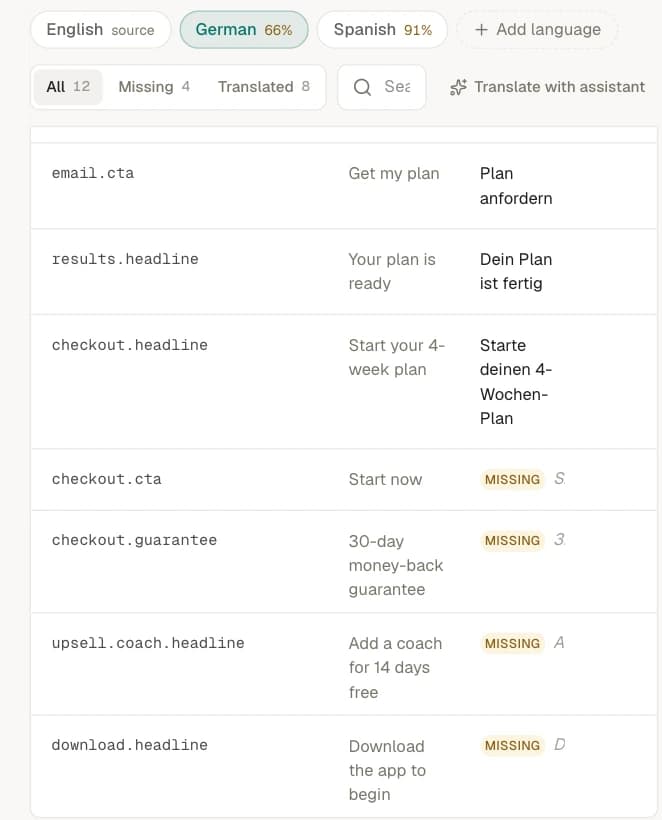
Once a catalog exists, the view becomes a grid — one row per translation key, columns for the source language and the language you’re editing.
Language pills sit across the top. The source language shows a source pill; every other language shows its completion percentage as a percent pill. The percentage is floored, so a nearly-complete language reads 99% and only ever shows 100% when every key is filled. If a catalog file is malformed, its pill turns into an amber triangle warning:
<l>.json isn’t valid JSON — fix it in Code
Fix the JSON in the Code view and the table recovers.
Each cell is a textarea:
- Enter commits the edit.
- Shift+Enter inserts a newline inside the string.
- Esc reverts the cell to its last saved value.
A missing target string shows an amber missing chip plus a ghosted preview of the source string, so you can always see what you’re translating from.
Clearing a cell deletes the key — it does not save an empty string. At runtime an empty string "" would stop the fallback chain and render nothing. To prevent that, the editor removes the key entirely when you clear a cell, so a blank translation falls back to the source language instead of rendering empty. Blank translations fall back to the source at runtime, never render empty — that’s the whole point. If you want a key to actually show the source text, just leave it empty; don’t type the source string in by hand.
To delete a key deliberately, use the delete control on its row — you’ll be asked to confirm (Delete key ”…”? → Delete key). Keys themselves come from t() calls in your pages; you add new strings by editing code or asking the assistant, not from this table.
Adding a language
Use the Add language inline input (placeholder es, fr, pt-br). Enter a locale code and a new empty column appears. Validation is strict:
- Bad format →
Use a locale like es, fr, pt-br - A code already in the funnel →
Language already exists - The source code →
That's the default language
Translating with the assistant
For any non-source language below 100%, a Translate missing with assistant action appears. This is honest about what it does: it queues a prompt into the assistant chat — it is not a one-click machine-translate button. The prompt it sends is:
Translate the missing “
<active>” strings for this funnel — fill every empty key in messages/<active>.json from the<source>source.
The assistant then edits the catalog the same way it edits any file — you review the result in the table like any other change. There’s no dedicated translation endpoint and no inline auto-translate dropdown; translating always goes through the assistant.
Auto-detecting the visitor’s language
This one lives in the editor’s Settings view, not in Localization. The Auto-detect visitor language switch controls one thing: whether a visitor who didn’t ask for a language gets one matched to their browser.
Show a supported language matching the visitor’s browser when the URL doesn’t specify one. Off = everyone sees
<default>unless the URL sets a language.
The switch writes locales.autoDetectLanguage into funnel.ts. You need at least two languages before it does anything, so with only one it stays greyed out and the description adds “Add a second language in Localization to enable.”
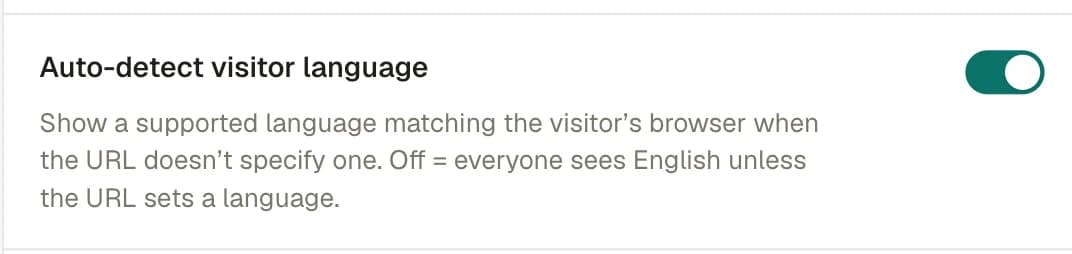
- Off (default): everyone gets the source/default language unless the URL explicitly sets one. The URL is the only switch.
- On: a visitor with no explicit language falls through to their
Accept-Languageheader, matched against your supported languages (base-matched:en-GBresolves toen). No match still lands on the default.
How the live locale gets picked
Appfunnel picks the language before the page renders, so there’s never a flash of the wrong language. Priority is strict and top-down:
| Priority | Source | When it applies |
|---|---|---|
| 1 | Path prefix /{locale}/{campaign}/{page…} | The first URL segment matches a locale pattern (en, pt-br, …) and a campaign segment follows it. |
| 2 | ?language= query | No locale path prefix, but the query string sets one. |
| 3 | Accept-Language header | Only when auto-detect is on, and neither of the above is present. |
| 4 | Default | Nothing else matched. |
Two things to know:
- It always clamps, never 404s. An unsupported locale override — a path prefix or
?language=for a language you don’t offer — falls back to the default and serves the page. A wrong locale never produces a “not found”. - A campaign slug cannot be a bare locale code. Because the path prefix is detected by “first segment looks like a locale and a campaign follows”, naming a campaign
enordewould collide with locale routing. Give campaigns real names.
Both of these serve Spanish, and the resolved locale is stamped into <html lang> either way:
https://<custom-domain>/es/<campaign-slug>
https://<custom-domain>/<campaign-slug>?language=es
Previewing languages
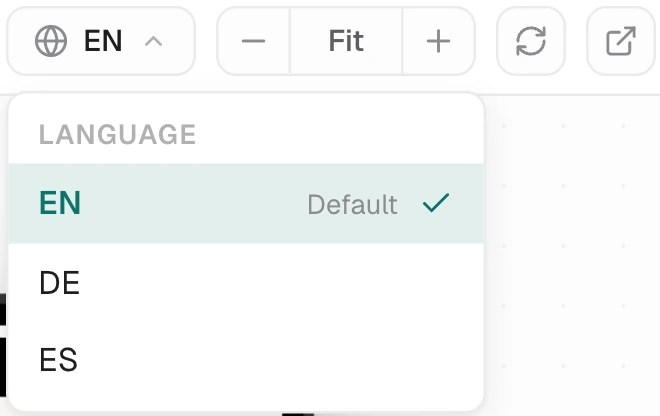
The editor preview has a globe pill in its toolbar — it only appears once the funnel supports more than one language. Open it, pick a language, and the preview re-renders instantly in that language. The popover is headed Language and tags the default with a Default marker. Use it to eyeball every language before publishing.
Writing translatable pages
You rarely write t() by hand — the extractor does it — but when you author new strings, this is the shape. useTranslation() gives you the translation function and locale-aware formatters:
import { useTranslation } from '@appfunnel-dev/sdk'

function Welcome() {
	const { t, fmt } = useTranslation()
	return (
		<>
			<h1>{t('welcome.title')}</h1>
			<p>{t('greeting', { name })}</p>          {/* interpolates {{name}} */}
			<p>{t.plural(days, { one: '# day', other: '# days' })}</p>
			<p>{fmt.number(1234.5)}</p>
		</>
	)
}
{{var}} is the interpolation syntax, t.plural uses Intl.PluralRules for locale-correct plurals (# becomes the number), and fmt.number/date/percent are Intl-backed. A missing key falls through the chain (active → fallback → default) and, as a last resort, returns the key itself with a dev-console warning. The hook is covered in State and fully in the hooks reference.