The AI Assistant
The Chat view is a real, working assistant that edits your funnel. It’s not a suggestion box that hands you code to paste — it writes your draft files directly, through the same path a manual edit or a connected agent uses. Its changes show up as file edits in the Code view, they’re covered by undo, and they autosave like anything else. What it never does is publish.
What it can do
You describe a change in plain language; the assistant reads the relevant files, plans an edit, and writes it. Under the hood it works through a small, fixed set of tools that operate on your draft:
- Read your funnel — list files and read them before changing anything.
- Write files — edit pages,
funnel.ts,styles.css, translations. It writes whole files, one at a time. - Create and delete pages — add a new step, remove one, keeping
funnel.tsin sync. - Assign an offering — set which offering an offer slot sells, by rewriting
funnel.ts. - Check your funnel — read the same issues, preview errors, and publish problems you see, so it can verify its own work before saying it’s done.
- Look up the SDK — search the real, current SDK reference so the code it writes uses APIs that actually exist.
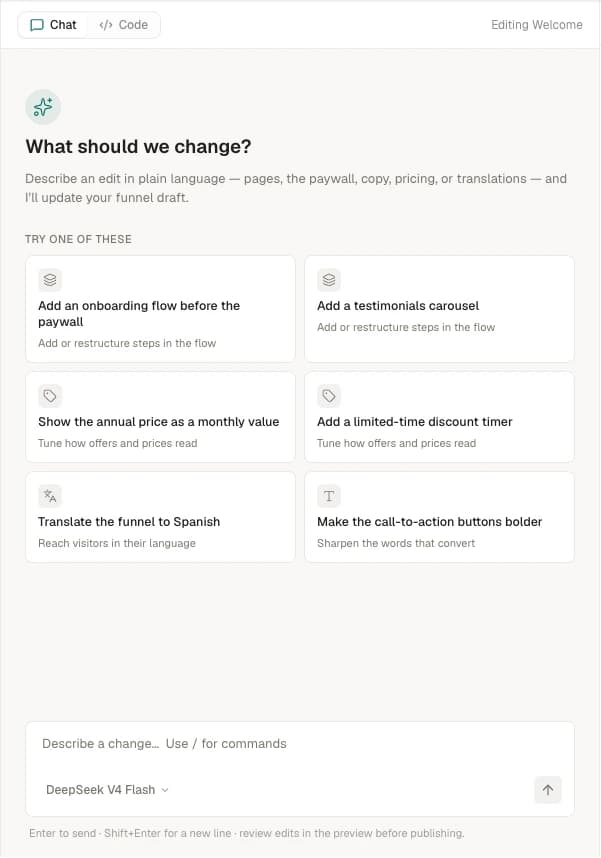
The greeting sets expectations: “Hi — I’m your funnel assistant. Tell me what to change and I’ll edit the funnel: pages, the paywall, copy, pricing, or translations.”
Because every edit flows through the editor’s normal write path, the assistant is subject to the same rules you are. It can’t touch the platform-generated framework files. It keeps page filenames and the funnel.ts pages array in lockstep. And it surfaces the same validation — if a change leaves a dead end or an unassigned offer, the Issues chip lights up just as it would for a hand edit.
The assistant talks to you in marketer-friendly terms — it calls offering slots “offers” and refers to files as “funnel settings”, “styles”, or “Spanish translations” rather than by path. The receipts it shows (“Made 3 changes”, “Reading 2 files…”) deep-link into the Code view so you can see exactly which files it touched.
Prompting patterns
The assistant is best at concrete, funnel-shaped changes. A few patterns that work well:
Add a page or flow
Add an onboarding flow with three quiz questions before the paywall.
It creates the page files, registers them in funnel.ts, and wires the routing so they run before the paywall.
Restyle
Make the call-to-action buttons bolder and use a warmer accent color.
It edits the Tailwind classes in your pages (and @theme tokens in styles.css where appropriate).
Rework the offer copy
Show the annual price as a monthly value and add a limited-time discount timer.
Set up an A/B test
Create an A/B test of the paywall headline.
It forks the paywall into a variant and sets up the experiment — the same handoff you’d do with Start a test in the Flow view. You start, weight, and conclude the test in the Experiments view.
Translate
Translate the funnel to Spanish, then fill every missing Spanish string.
Localization is driven through the assistant rather than a one-click button: enabling translations extracts your strings, and asking the assistant fills the catalog. See Localization for the full flow.
The composer placeholder — “Describe a change, or paste a screenshot…” — and the “Try one of these” suggestion chips (“Add an onboarding flow before the paywall”, “Add a testimonials carousel”, “Translate the funnel to Spanish”, “Make the call-to-action buttons bolder”, and more) are good starting points. Send with Cmd/Ctrl+Enter.
How changes show up
Every edit the assistant makes is a real change to your draft:
- In the file tree and code view — open the Code view and the touched files reflect the new content. Nothing is hidden or held in a side buffer.
- Under undo — the header undo/redo covers assistant edits at the same file-level granularity as your own. If a turn goes somewhere you didn’t want, undo it.
- In the preview — the live preview rebuilds after the edits, so you see the result immediately.
- Autosaved — the changes flush to your draft on the normal 800ms debounce.
If a turn is interrupted, the assistant tells you so — “The assistant was interrupted.” — and offers Retry or Undo this turn’s edits. It’s honest about state: any file edits it already made “were already applied and saved to your draft,” so undo is how you back them out cleanly.
What it won’t do
The assistant edits your draft. It does not publish, and it can’t. Publishing to live is always a deliberate action you take from the Releases popover, the CLI, or the dashboard. The assistant’s own footer says it plainly:
“The assistant edits your draft — review every change in the preview before publishing.” Treat its edits like a teammate’s pull request: read the diff, check the preview, then publish yourself.
One more thing worth knowing: the chat is ephemeral. A divider in the panel reads “This session — chat isn’t saved with the draft.” The conversation lives with your editor tab, not with the funnel. The edits persist in your draft; the back-and-forth that produced them does not.