The Editor
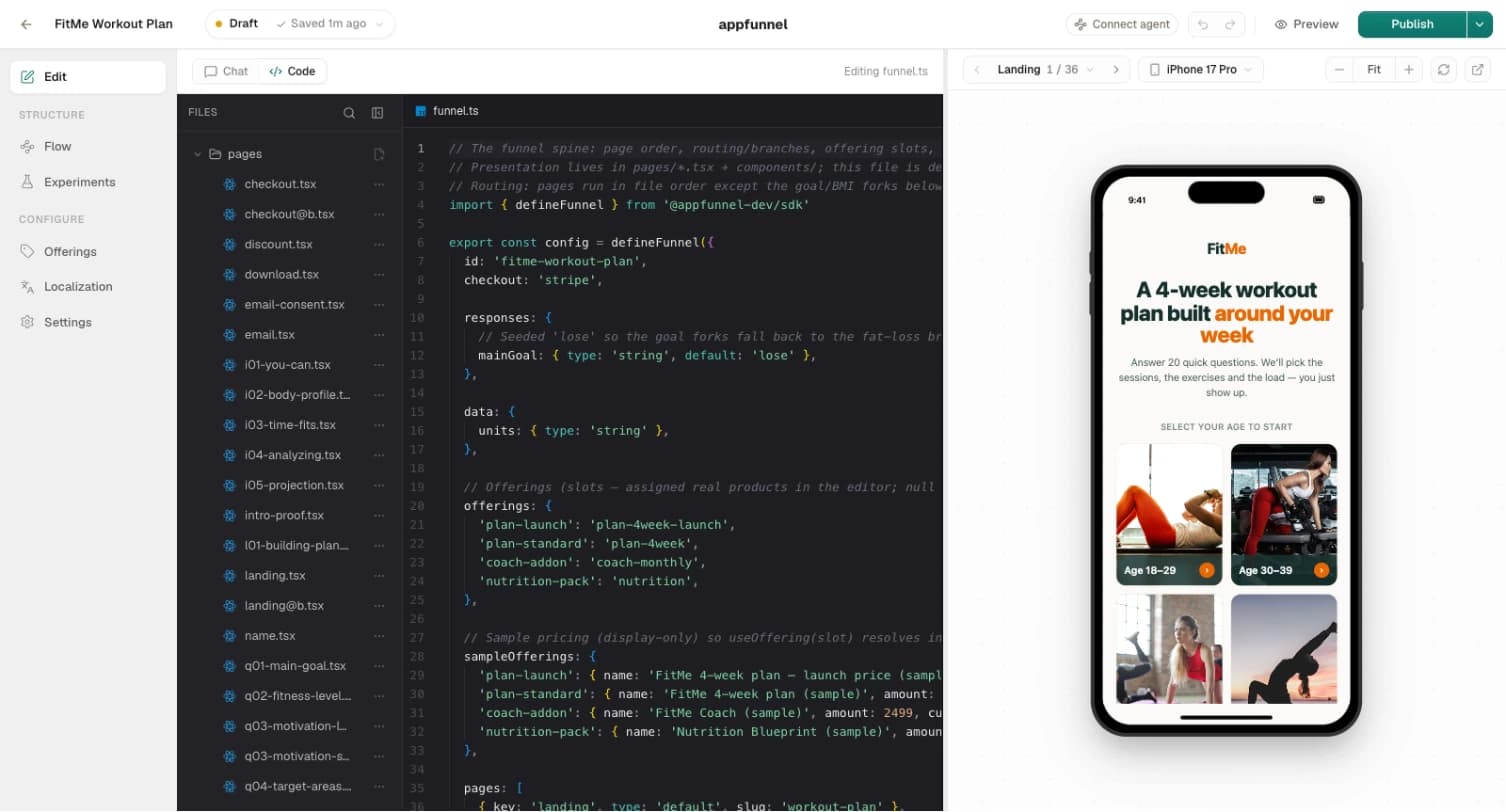
The editor is a dark, full-screen workspace for one funnel. You reach it by opening a funnel from the funnels list — it takes over the whole window. On the left is an icon rail that switches views; in the middle is the workspace for the active view; on the right, always mounted, is a live device preview of your funnel.
Everything you do here edits one thing: the funnel’s draft — the working copy of its files. The AI assistant, a connected agent, and every config view all write to that same draft through the same path, so undo covers all of it and nothing is live until you publish.
The header
The top bar carries the funnel’s identity and every publish control.
- Funnel name — the funnel you’re editing.
- Release chip — one pill carrying two things: how your draft compares to what’s published (Live when they match, Draft when they don’t) and your save state (Saved, Unsaved, Saving…, or Save failed — see Autosave). So it reads Live · Saved 2m ago or Draft · Unsaved. Hover for detail: which release is live and whether you have unpublished changes, or
Not published yet. Click it to open the Releases popover. - Issues chip — an amber N issue(s) button when the funnel has problems that block a clean publish. See Issues.
- Connect agent pill — pairs a terminal coding agent (Claude Code, Cursor, Codex) to this funnel over MCP. See Connected agents.
- Undo / redo — coarse, file-level snapshots. One undo reverses a whole change, whoever made it — a manual edit, an assistant turn, or an agent’s write.
- Preview — opens your whole funnel in a separate tab, served in test mode — the real published shape, distinct from the live in-editor preview panel.
- Publish — a split button that builds and promotes your draft to live. Its menu holds View live, Copy live URL, and Releases….

The tools rail
The far-left icon rail switches the center workspace between views. It’s split into two groups.
Editing
- Chat — the AI assistant. Describe a change; it edits your draft files.
- Code — the file tree plus a full code editor. Hand-edit any funnel file.
- Flow — the visual canvas: pages as nodes, routing as edges, A/B tests as groups. Start a page test here and author its variant page; the verdict and lifecycle live in the Experiments dashboard.
Configuration
- Localization — enable translations and edit the message catalogs. See Localization.
- Offerings — assign an offering to each offer slot your pages show. See Offerings & checkout.
- Settings — funnel-level settings.
The header also has two quick tabs, Chat and Code, for the two editing surfaces you switch between most. A dot appears on Chat when an assistant answer arrives while you’re looking at another view.
The file tree and code view
The Code view pairs a file tree with a full code editor. A funnel is a small React/TypeScript project:
funnel.ts            the spine: id, pages, responses, offerings, checkout, locales
layout.tsx           persistent chrome around every page
styles.css           Tailwind entry + @theme tokens
pages/
  welcome.tsx        one component per page; filename === page key
  email.tsx
  paywall.tsx
  finish.tsx
messages/            optional per-locale translation catalogs
Generated files (mount.tsx and friends) are hidden from the tree — they’re maintained for you. See Project structure for the full contract.
Folders carry add-actions on hover: pages gives you create page; messages gives Enable translations / Add language; assets opens a file picker to upload images. The right-click context menu holds the rest — Rename page…, Duplicate, Delete page… for pages; Rename / Duplicate / Copy reference / Delete for assets; Rename / Delete for locales.
Renaming a page forks its analytics. The rename dialog makes you acknowledge this — “I understand this page’s event history will split.” — before you confirm with Rename & fork. A renamed page is a new page as far as event history is concerned.
Uploaded images show a Read-only pill: they’re binaries, so you can view and reference them but not edit their contents in the code view. Upload replacements through the assets folder. Renaming, deleting, or creating a page also updates funnel.ts automatically so the page stays registered — the editor keeps the pages array and your files in lockstep.
Autosave
The draft loads once when you open the editor. From then on, every change is debounced and saved after 800ms of quiet. You never press save; the status chip in the header tells you where things stand:
| Chip | Meaning |
|---|---|
| Saving… | A save is in flight. |
| Saved | The draft on the server matches your edits. |
| Unsaved | You have edits not yet flushed (mid-debounce, or a save in progress). |
| Save failed | The last save did not persist. |
If you try to close the tab while there are unsaved edits, the browser warns you. Closing normally flushes the draft first.
Save failed is the one status to take seriously. Its tooltip reads: “The draft could not be saved — your latest edits are NOT persisted…”. If you see it, your most recent changes exist only in the tab. Don’t close it; fix connectivity and let the next save succeed before you walk away.
Issues
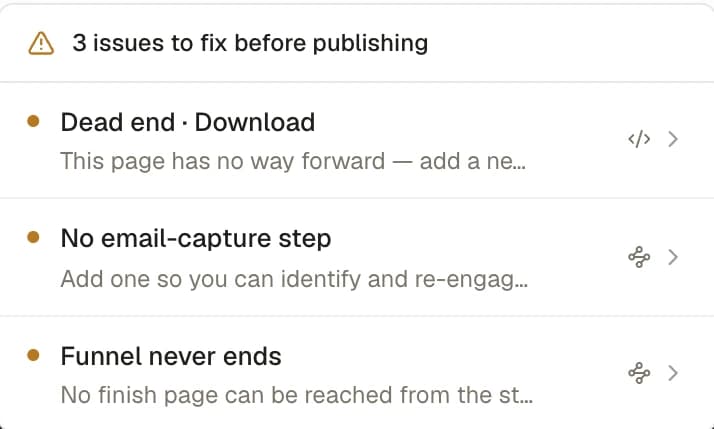
The amber Issues chip appears when the funnel has problems that would block a clean publish. Clicking it opens N issues to fix before publishing, and each row deep-links to the exact spot in Code or Flow. The checks include:
- Dead end · <Page> — “This page has no way forward…”.
- Unreachable · <Page> — no route leads to it.
- Broken route · <From> → <to> — “The target page … doesn’t exist.”.
- No email-capture step — “Add one so you can identify and re-engage users.” Every funnel needs an email-capture page.
- Offering problems — a page references an offer that isn’t set up, or a declared offer has no offering assigned. See Offerings & checkout.
Releases
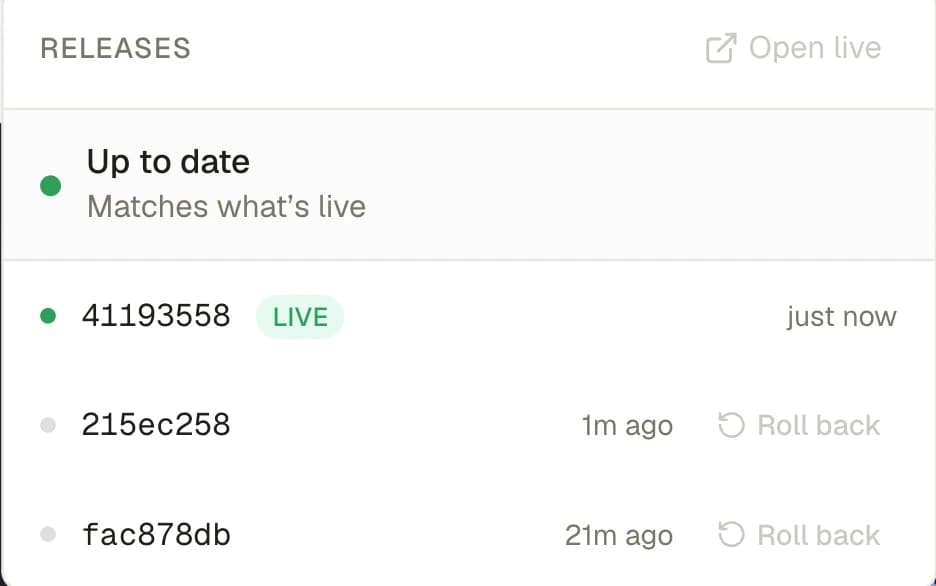
The release chip in the header opens the Releases popover — your publish and rollback surface. It lists your READY releases.
- The draft row shows Unpublished changes / N unpublished change(s) with a Publish button, or Up to date / “Matches what’s live” when the draft equals the live release.
- Each release row shows a short release id; the current one carries a Live pill, and hovering any older release reveals Roll back. Rolling back is instant — the release already exists, so nothing is remade — “In-flight visitors finish on the current release — only new visitors get the one you roll back to. Reversible.”
- Empty state: “No releases yet. Publish to create your first release.”
A running experiment owns its variant pages, so publishing can’t strip one out. If a release would drop a page that backs a live test’s arm, the editor blocks the publish with A running test is missing its pages — conclude the test (promote a winner or discard it) to free the page.
The full publish pipeline — deployments, their stages, releases, custom-domain serving — is covered in Publishing.
One draft, many editors
The single most important thing to internalize about the editor: chat, connected agents, and the config views all write the same draft files.
The assistant’s edits land in your files exactly like typed ones — you can see the diff in Code, and undo covers them. Assigning an offering in the Offerings view rewrites funnel.ts. A connected agent’s write_file runs through the identical path. There is no separate “AI layer” or “no-code layer” sitting on top of the code; there is one draft, and everything edits it. That’s why undo is universal and why you always review in the preview before you publish.