The Preview
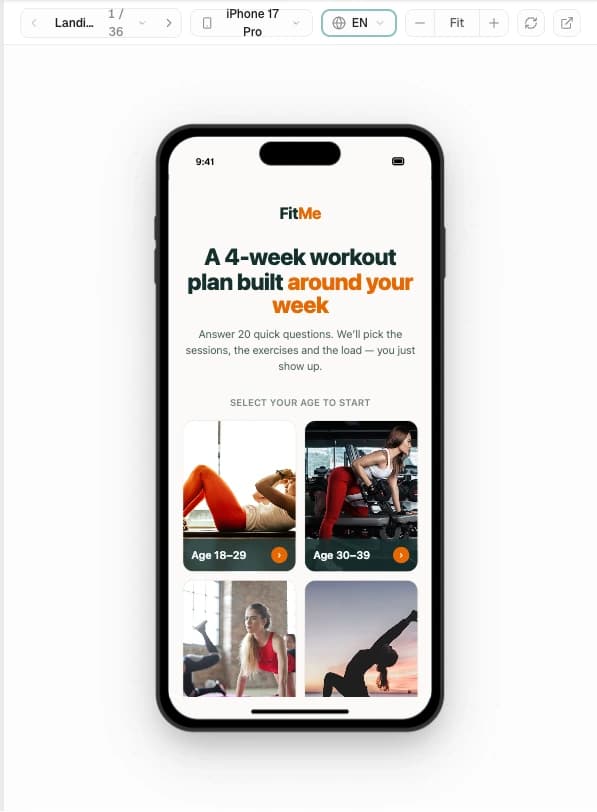
The right side of the editor is a live, device-framed preview of your funnel, mounted at all times. It’s the fastest feedback loop you have: change a file, and the preview shows the result almost instantly. This is where you verify every edit — yours, the assistant’s, or a connected agent’s — before you publish.
Instant updates
The preview recompiles your funnel in the browser the instant you change a file — there’s nothing to click. While it works you’ll see Updating preview…; then the updated funnel snaps in.
Your funnel runs sandboxed from the dashboard, so its code can never touch your admin session — the preview is isolated by design.
Device presets and orientation
A device selector frames the preview in a specific viewport. It defaults to iphone-17-pro and offers a range of phones, plus iPads, each with an orientation toggle so you can check portrait and landscape. A zoom control (Fit, or a fixed percentage) sizes the frame to your screen. Because funnels are almost always ad destinations opened on a phone, the mobile presets are where you should spend most of your verification time — but the tablet frames matter for anyone landing on an iPad.
The locale switcher
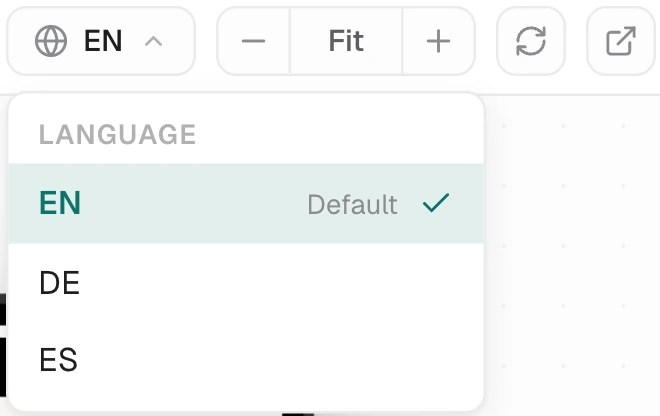
When your funnel supports more than one locale, a Globe pill appears above the preview. Open it to pick a language from a Language popover (the default locale is tagged Default). Switching re-renders the funnel in that locale instantly. This is how you check that translations fit, that nothing overflows, and that right-to-left languages lay out correctly. See Localization for how the catalogs work.
Navigation controls
Below the frame are controls to walk the funnel like a visitor would: previous / next to step through pages, a jump control to go to a specific page, and a progress indicator.
Live navigation comes online once the funnel finishes loading in the preview. Until then the preview renders each page but the step-through controls may be inert — the page content is accurate either way. A connected agent can drive this same navigation with its go_to_page, go_next, and go_previous tools.
When something breaks
The preview surfaces two kinds of failure honestly:
- Compile failures — your funnel didn’t compile. A red Preview error chip appears in the top bar; click it for a panel with the raw compiler output and a copy button, so you can read the exact error (or paste it to the assistant). This is the same buffer the Issues chip and the assistant’s
get_errorsread from. - Runtime errors — a page compiled but threw while rendering. These surface in the same error buffer, so a page that compiles but crashes at render doesn’t just show a blank frame.
Fix the error and the next clean compile clears the panel.
What the preview is not
The preview renders your funnel faithfully, but it is a test-mode render, not a live purchase:
- Payments are test mode. The checkout uses the provider’s test path — no real card is charged. Use it to verify the checkout flow and copy; use a real published funnel (or a catalog test link) to verify a real charge. Entitlements resolve from the Test price you completed, so only the entitlements assigned to that price unlock.
- Fraud signals are disabled. The anti-fraud/risk machinery that runs on live traffic is off in preview, so don’t read preview behavior as a signal about production risk handling.
- It isn’t analytics. Preview and test-mode traffic never reach your analytics — nothing you do in the preview shows up in visitor, session, or revenue numbers.
The preview is for verifying that your funnel looks and behaves right. For a real end-to-end purchase check, publish and open the live funnel on your custom domain, or use a test link from the catalog. See Publishing.